Promoted articles
StockTake
Introduction
StockTake Online is a cloud-based inventory management solution that streamlines restaurant operations. It provides real-time tracking of stock, orders, and inventory, giving complete visibility and control. With an intuitive dashboard, users can quickly access key data, making inventory management more efficient.
The platform centralizes business functions in one place, reducing manual effort, minimizing waste, and optimizing costs. Whether managing one outlet or multiple locations, StockTake Online saves time and improves accuracy with automation, allowing owners to focus on service instead of manual tasks.
Integrating StockTake Online with Foodics brings automation and accurate results to hospitality businesses. With seamless API integration, daily sales data flows directly from the POS to the STO backend, eliminating manual entry and errors.
This enables real-time sales tracking, accurate ingredient consumption, and gross profit calculations based on recipes. Enhanced reports and dashboards support better decisions, saving time, boosting efficiency, and improving the customer experience.
Reach out to Stocktake at:
Website: https://www.stocktake-online.com
Support Email: support@stocktake-online.com
Phone Number: +44 02036961150
Enabling the Integration
Note: You must have an Stocktake account before enabling this integration. If you don't have an account, contact Stocktake support to register.
- Log in to your Foodics console at console.foodics.com/login using the owner email, If you logged in with a non-owner user, you will not be able to activate the integration.
- Navigate to the
Marketplacepage ---> Search forStocktakeunderInventory Managementcategory ---> ClickInstall. -
Foodics will ask you to Authorize Stocktake Online to access your Foodics Account, click
Authorize Stocktake To Access My Accountto proceed.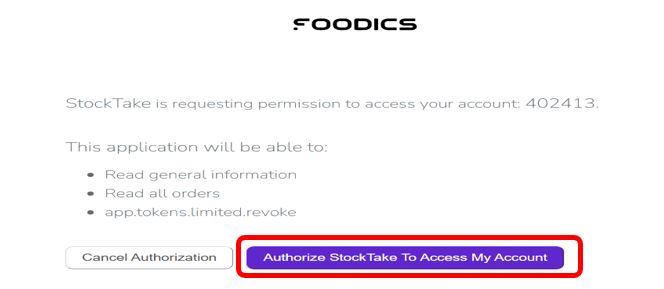
- You will be navigated to Stocktake Online merchant panel to enter your Stocktake Online business credentials with admin access to sign in.
- Navigate the appropriate site & location on Stocktake Online to connect with Foodics.
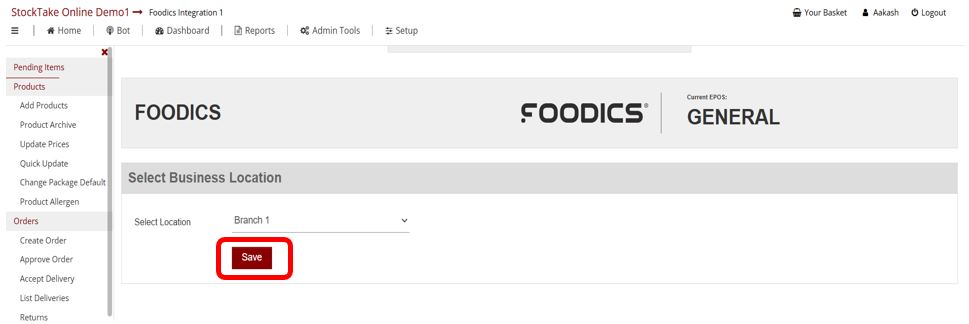
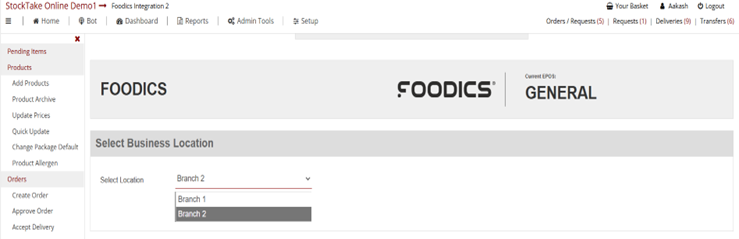
- Now, please select the appropriate Business location (Branch in Foodics Account) to connect with Stocktake Online and save it.
Integration workflow for existing Foodics connection
- Login to Stocktake Online portal with admin access.
-
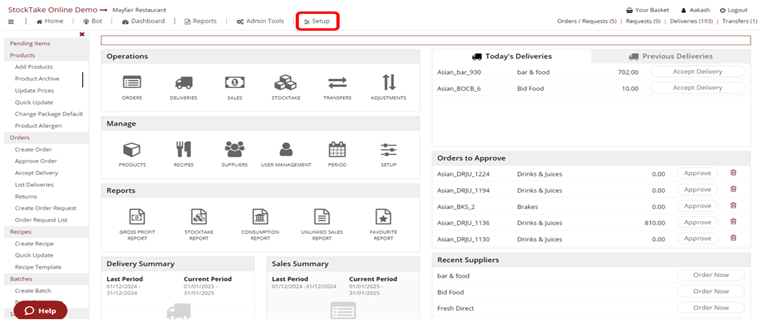
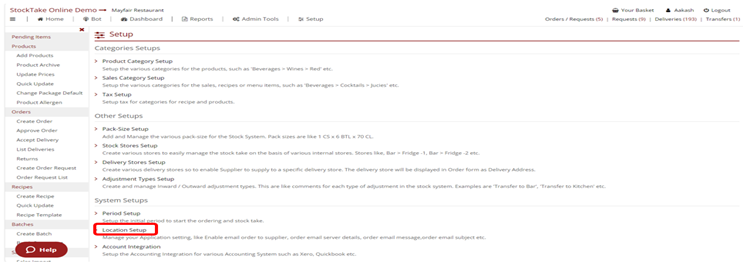
Once you have logged in, to configure integration please click on ‘’Setup’’.
-
Now select ‘’Location Setup’’ tab as shown below.
-
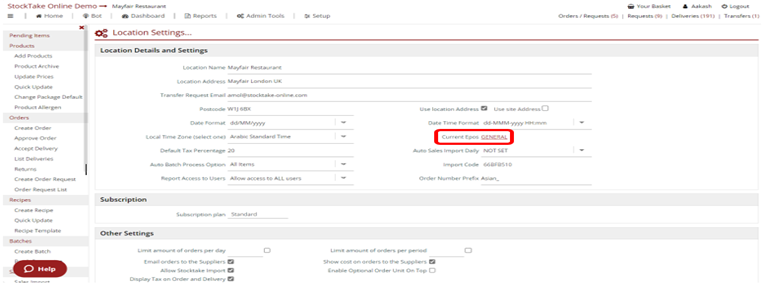
From Location setup page, please click on ‘’Current Epos’’ tab to connect the integration.
-
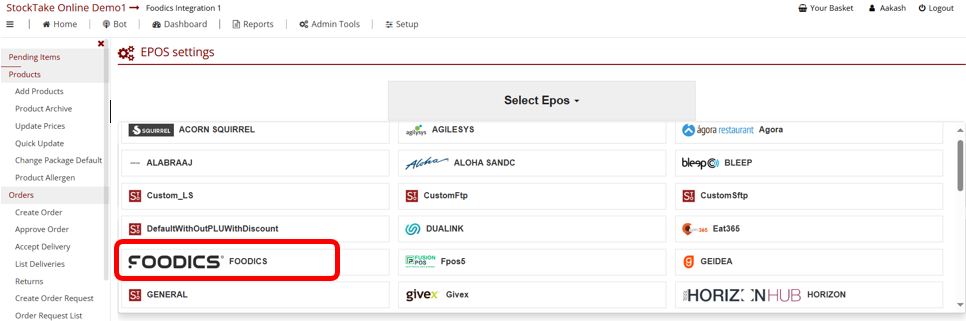
Select “Foodics” from Select EPOS drop down which is in alphabetical order.
-
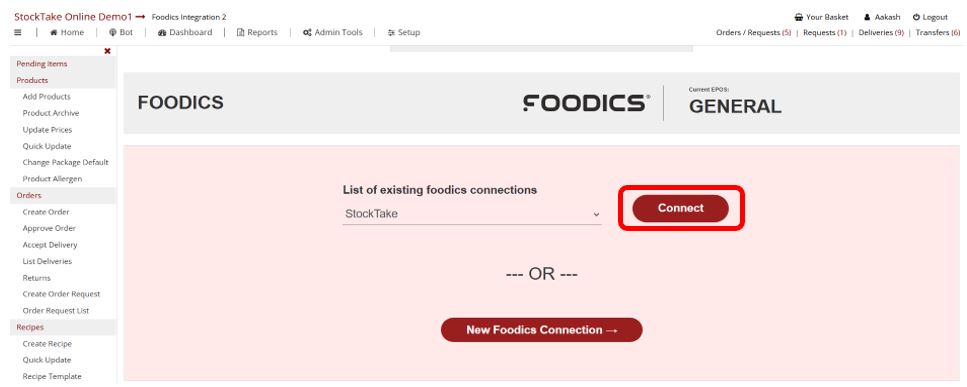
Please click on ‘’Connect’’ if the integration is already setup with the same account and you wish to connect it to another branch.
-
Please select the appropriate Business Location for which you need to configure the integration and save it.
-
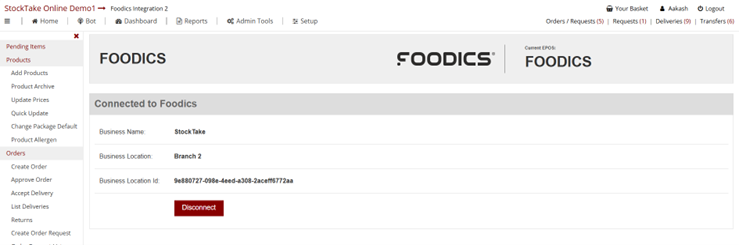
Once the Foodics integration is completed, you will be able to see the below screen.